Wagtail Logo
v2.2.2
  • Getting started
  • Usage guide
  • Advanced topics
  • Reference
  • Support
  • Using Wagtail: an Editor’s guide
    • Introduction
    • Getting started
    • Finding your way around
    • Creating new pages
      • Selecting a page type
      • Creating page body content
      • Inserting images and videos in a page
      • Inserting links in a page
      • Inserting videos into body content
      • Inserting links to documents into body text
      • Adding multiple items
      • Required fields
      • Edit Page tabs
      • Previewing and submitting pages for moderation
    • Editing existing pages
    • Managing documents and images
    • Managing Redirects
    • Administrator tasks
    • Browser issues
  • Contributing to Wagtail
  • Release notes
Wagtail
  • Docs »
  • Using Wagtail: an Editor’s guide »
  • Creating new pages »
  • Inserting links in a page
  • Edit on GitHub

Inserting links in a page

Similar to images, there are a variety of points at which you will want to add links. The most common place to insert a link will be in the body text of a page. You can insert a link into the body text by clicking the Insert link button in the rich text toolbar.

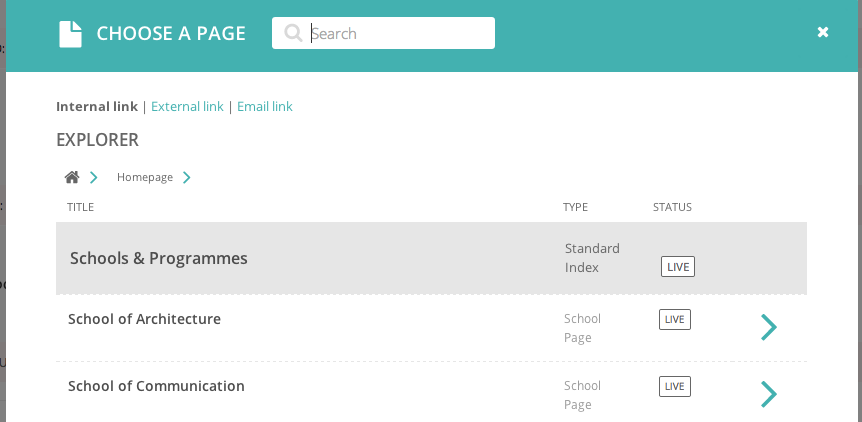
Whichever way you insert a link, you will be presented with the form displayed below.
../../_images/screen19_link_form.png
  • Search for an existing page to link to using the search bar at the top of the pop-up.
  • Below the search bar you can select the type of link you want to insert. The following types are available:
    • Internal link: A link to an existing page within your website.
    • External link: A link to a page on another website.
    • Email link: A link that will open the user’s default email client with the email address prepopulated.
  • You can also navigate through the website to find an internal link via the explorer.
Next Previous

© Copyright 2015, Torchbox. Revision 9bf2a696.

Built with Sphinx using a theme provided by Read the Docs.